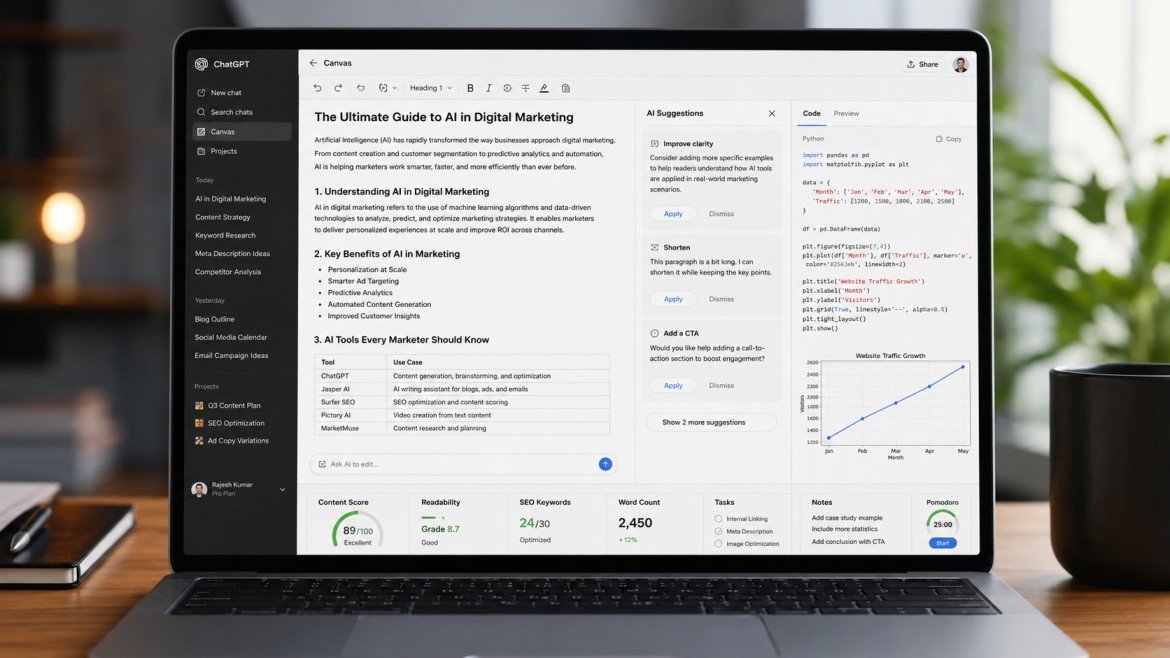
ChatGPT is widely used for answering questions, brainstorming ideas, writing content and helping with coding. But long documents and coding projects often require more than a simple chat conversation.
Editing a long article, improving a report, rewriting specific paragraphs or debugging a large piece of code can become difficult when everything happens inside a normal chat.
ChatGPT Canvas is designed for exactly these types of tasks.
Canvas provides a dedicated workspace where users can work with ChatGPT on writing and coding projects. Instead of repeatedly copying content between ChatGPT and another editor, users can work on the material directly in the Canvas interface.
According to OpenAI’s current documentation, Canvas supports writing and coding workflows, including direct editing, inline suggestions, version history and several specialized shortcuts. It is currently available on Web, Windows and macOS, while mobile availability is being developed.
This guide explains what ChatGPT Canvas is, how it works, its main features, how to use it, and how students, writers, marketers and developers can use it effectively.
Table of Contents
ToggleWhat Is ChatGPT Canvas?
ChatGPT Canvas is a dedicated workspace for creating and editing writing or coding projects with ChatGPT.
The key difference between a regular ChatGPT conversation and Canvas is the working environment.
In a normal conversation, you primarily communicate with ChatGPT through messages.
In Canvas, you can work directly on the document or code while asking ChatGPT to make targeted changes.
For example, you can:
- Write an article
- Edit a report
- Rewrite a paragraph
- Change the length of a document
- Adjust the reading level
- Review code
- Fix coding errors
- Add comments
- Restore an earlier version
Canvas is therefore particularly useful when a project requires repeated editing and refinement rather than a single answer.
Why Was ChatGPT Canvas Created?
Long-form writing and coding can become difficult when handled entirely through a traditional chat interface.
Users may need to:
- Edit individual paragraphs
- Compare different versions
- Ask for specific changes
- Review code
- Keep the entire project visible
- Make several revisions
Canvas provides a more focused workspace for this process.
OpenAI introduced Canvas as an interface for working collaboratively with ChatGPT on projects that go beyond simple chat interactions.
How Does ChatGPT Canvas Work?
Canvas combines a document or coding workspace with ChatGPT assistance.
A typical workflow looks like this:
Step 1: Start a Canvas
You can ask ChatGPT to use Canvas for a writing or coding project.
For example:
“Use Canvas to help me write a 2,000-word article about artificial intelligence.”
You can also start with a blank Canvas where supported.
OpenAI’s documentation says users can type requests such as “open a canvas” or “open a coding canvas” on the web.
Step 2: Add Your Content
You can start writing directly in Canvas or provide existing material.
For example:
- Paste an article draft
- Add notes
- Insert code
- Provide a report
- Start a document from scratch
Step 3: Ask ChatGPT to Edit
You can ask ChatGPT to change specific parts of your work.
Examples:
“Make this introduction shorter.”
“Rewrite this paragraph in simpler English.”
“Make the tone more professional.”
“Fix the error in this Python code.”
You can also highlight a specific section and ask ChatGPT to focus on that part.
Step 4: Review the Changes
Canvas allows you to work through revisions rather than accepting a completely new response every time.
This makes it easier to refine a document gradually.
Key Features of ChatGPT Canvas
1. Direct Editing
One of the most useful Canvas features is the ability to edit the document or code directly.
You do not have to ask ChatGPT to rewrite the entire document every time.
You can make your own changes inside the workspace.
2. Highlight Specific Sections
You can select a particular section of text or code and ask ChatGPT to work on that portion.
For example:
- Rewrite this paragraph
- Explain this code
- Make this section shorter
- Improve this sentence
- Add more detail
This provides more precise control over the editing process.
3. Suggest Edits
Canvas includes a writing shortcut that allows ChatGPT to provide suggestions for improving your document.
It can help identify areas where the writing could be clearer or more effective.
4. Adjust the Length
Canvas can help make a document shorter or longer.
For example:
“Make this article 30% shorter.”
or:
“Expand this section with two practical examples.”
The length adjustment shortcut is one of the built-in writing tools described by OpenAI.
5. Change Reading Level
Canvas can adjust writing for different audiences.
For example, a technical explanation can be rewritten for:
- Beginners
- School students
- General readers
- Advanced readers
OpenAI lists reading-level adjustment among Canvas’s writing shortcuts.
6. Final Polish
Canvas can help improve:
- Grammar
- Clarity
- Consistency
- Overall readability
This can be particularly useful before publishing an article or submitting a document.
7. Version History
One important feature is version history.
Users can move through previous versions of a Canvas document or code and restore earlier work when needed.
This is useful when experimenting with major changes.
For example, if you rewrite an article and later decide the previous version was better, version history can help you return to an earlier version.
ChatGPT Canvas for Writing
Canvas is particularly useful for long-form writing.
Writers can use it for:
- Blog posts
- Reports
- Essays
- Scripts
- Proposals
- Emails
- Marketing copy
- Research drafts
Instead of generating the entire document repeatedly, users can work on individual sections.
ChatGPT Canvas for SEO Content
SEO professionals and bloggers can use Canvas as an editing workspace.
For example, you can create an article and then ask ChatGPT to:
- Improve the introduction
- Make headings clearer
- Expand thin sections
- Simplify complicated explanations
- Improve readability
- Create an FAQ section
- Rewrite meta descriptions
However, SEO optimization should not mean inserting keywords unnaturally. Content should remain useful and readable for people.
ChatGPT Canvas for Coding
Canvas is not limited to writing.
It also supports coding workflows.
Developers can use it to:
- Write code
- Review code
- Add comments
- Fix bugs
- Refactor code
- Port code between supported programming languages
OpenAI’s documentation lists coding shortcuts such as adding logs, adding comments, fixing bugs, porting code and performing code reviews.
Python Code Execution in Canvas
Canvas also supports Python code execution in the browser.
When supported, users can execute Python code directly from the Canvas interface and view the output in the console.
If an error occurs, ChatGPT can help identify and fix the problem. OpenAI currently documents this execution capability specifically for Python.
Can ChatGPT Canvas Run HTML or React?
Canvas can render React and HTML in a sandbox environment.
This can allow developers to preview certain web-based projects directly within the Canvas environment.
However, projects that require external packages or web resources can depend on network-access settings and other environment restrictions.
How to Use ChatGPT Canvas for an Article
For bloggers, a simple workflow can be:
Step 1: Create the Draft
Ask ChatGPT to create an article in Canvas.
Step 2: Review the Introduction
Highlight the introduction and ask:
“Make this more useful and engaging without adding unnecessary claims.”
Step 3: Improve Headings
Ask ChatGPT to organize the article with logical H2 and H3 headings.
Step 4: Improve Readability
Ask:
“Rewrite complicated sentences in simple English.”
Step 5: Add Missing Information
Ask ChatGPT to identify sections that need more explanation.
Step 6: Final Polish
Use the final-polish functionality to check clarity and consistency.
This workflow can make editing much easier than repeatedly starting new conversations.
How Students Can Use ChatGPT Canvas
Students can use Canvas for:
- Essays
- Research drafts
- Study notes
- Presentations
- Coding assignments
- Revision material
For example, a student can paste an essay into Canvas and ask ChatGPT to highlight areas where the argument needs stronger explanation.
Students should still verify facts and follow their school’s or institution’s rules regarding AI-assisted work.
ChatGPT Canvas for Content Creators
Content creators can use Canvas as a central editing workspace.
A YouTube creator could use it for:
- Video scripts
- Hooks
- Descriptions
- Content outlines
- Short-form scripts
A blogger could use it for:
- Articles
- SEO briefs
- FAQs
- Content updates
- Editorial revisions
The main benefit is the ability to continuously refine one piece of content without losing the working context.
ChatGPT Canvas vs Normal Chat
| Feature | ChatGPT Canvas | Normal Chat |
|---|---|---|
| Long-form editing | Excellent | Possible |
| Direct document editing | Yes | No dedicated editor |
| Highlight specific text | Yes | Limited |
| Version history | Yes | Not the same workflow |
| Writing shortcuts | Yes | General prompting |
| Coding workflow | Yes | Yes |
| Best for | Writing & coding projects | General questions |
Canvas is not a replacement for normal ChatGPT conversations. Instead, it is a different workspace designed for tasks that require editing and iteration.
ChatGPT Canvas vs ChatGPT Projects
These two features can work together but have different purposes.
| Feature | Canvas | Projects |
| Main purpose | Edit and refine work | Organize ongoing work |
| Writing workspace | Yes | No dedicated editing interface |
| Coding workspace | Yes | Can organize coding work |
| Project instructions | Not the main purpose | Yes |
| Related conversations | Not the main purpose | Yes |
| Best use | Creating/editing | Organization/context |
For example, you could use a ChatGPT Project to organize an entire SEO campaign and use Canvas to write and edit individual articles.
ChatGPT Canvas Availability
According to OpenAI’s current Help Center, Canvas is available on Web, Windows and macOS. OpenAI says mobile availability for iOS, Android and mobile web is coming.
Availability and supported capabilities can change as OpenAI updates ChatGPT, so users should check the latest official documentation before relying on a specific feature.
ChatGPT Canvas Limitations
Canvas is powerful, but it has limitations.
Feature Availability
Some capabilities may depend on platform, account, workspace configuration or model compatibility.
AI Can Make Mistakes
Canvas does not eliminate the possibility of incorrect AI-generated information or code.
External Resources May Have Restrictions
HTML or React previews that depend on external resources can be affected by network-access settings.
Human Review Is Still Important
Before publishing an article or deploying code, users should review the final result themselves.
Best ChatGPT Canvas Prompts
Writing Prompt
“Use Canvas to rewrite this article for a general audience while keeping all important facts.”
Editing Prompt
“Review this document and suggest improvements to clarity, grammar and structure.”
SEO Prompt
“Review this article’s structure for search intent and identify sections that need better explanations.”
Coding Prompt
“Review this Python code, identify bugs and explain each suggested fix.”
Simplification Prompt
“Rewrite the selected section in simple English without removing important information.”
Frequently Asked Questions
What is ChatGPT Canvas?
ChatGPT Canvas is a dedicated workspace for working with ChatGPT on writing and coding projects that require editing and revision.
Is ChatGPT Canvas free?
Canvas availability and feature access can depend on the current ChatGPT plan and product configuration. Users should check the latest official OpenAI information for their account.
Can I use ChatGPT Canvas for writing?
Yes. Canvas is designed for writing workflows and includes tools for editing, changing length, adjusting reading level, suggesting edits and polishing content.
Can ChatGPT Canvas be used for coding?
Yes. Canvas supports coding workflows including code review, bug fixing, comments and other development-related editing functions.
Can I restore an older version in Canvas?
Yes. Canvas includes version history that allows users to review previous versions and restore earlier work.
Can I export a Canvas document?
OpenAI’s current documentation says general Canvas documents can be exported in formats including PDF, Markdown and Word, while code-based canvases can be exported using appropriate file extensions.
Is ChatGPT Canvas available on mobile?
OpenAI currently lists Canvas as available on Web, Windows and macOS, with mobile availability described as coming soon.
Is Canvas better than normal ChatGPT?
It depends on the task. Normal ChatGPT is useful for general conversations, while Canvas is particularly useful when you need to repeatedly edit, refine or review a document or code project.
Final Thoughts
ChatGPT Canvas changes the way users can work with AI on long-form writing and coding projects.
Instead of treating every request as a separate chat response, Canvas provides a focused workspace where users can create, edit, review and refine their work.
For writers, bloggers, students and marketers, features such as direct editing, targeted suggestions, length adjustment, reading-level changes and version history can make the writing process more efficient.
Developers can also use Canvas for coding, debugging, code reviews and supported Python execution.
The best approach is to think of Canvas as a collaborative editing workspace, rather than simply another ChatGPT chat window.
As always, AI-generated content and code should be reviewed before publication or deployment.