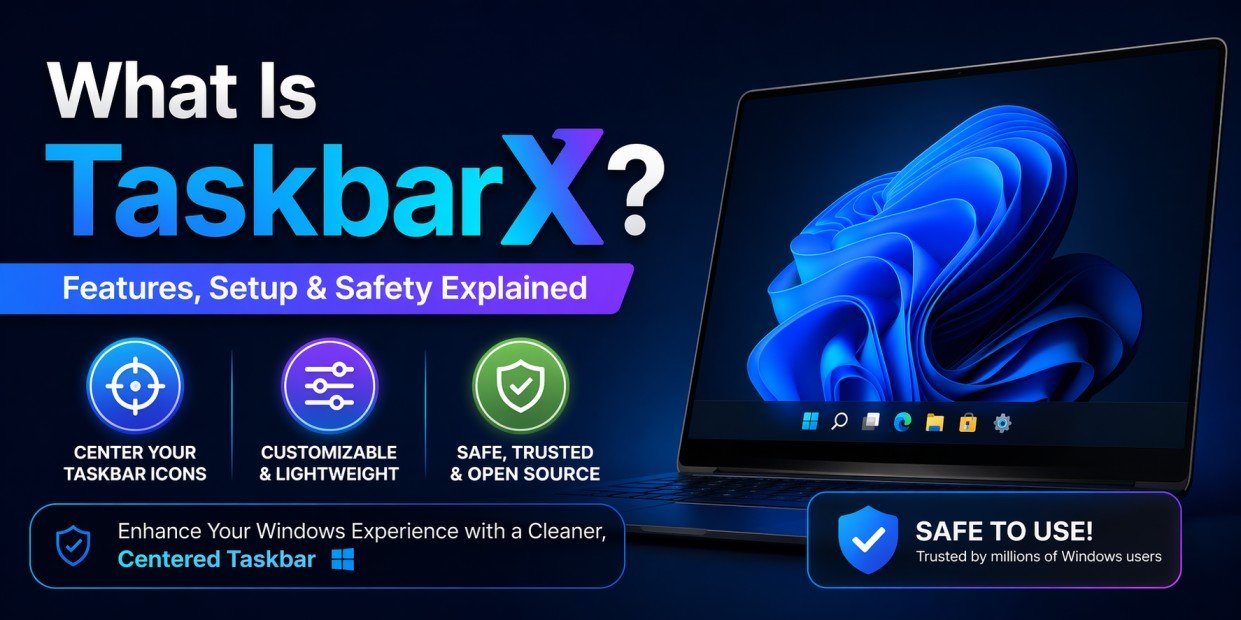
If you’ve ever wanted a cleaner, more modern look for your Windows desktop—especially on Windows 10—you’ve probably noticed how centered taskbar icons can instantly improve aesthetics. That’s exactly where TaskbarX comes in.
TaskbarX is a lightweight customization tool designed to center your taskbar icons and add smooth animations, giving your system a polished, Windows 11–style appearance without upgrading your OS. But beyond looks, it also offers flexibility, performance efficiency, and user-friendly customization.
In this complete guide, you’ll learn exactly what TaskbarX is, how it works, its features, how to set it up, and whether it’s safe to use.
Table of Contents
ToggleWhat Is TaskbarX?
TaskbarX is a Windows utility that allows users to center taskbar icons dynamically. Unlike manually dragging icons or using built-in limitations, TaskbarX intelligently repositions icons based on open applications and screen resolution.
Originally known as FalconX, the tool evolved into TaskbarX with enhanced features, improved stability, and broader customization options.
Key Purpose:
- Center taskbar icons
- Add smooth animations when apps open/close
- Customize taskbar appearance
- Improve desktop aesthetics without system modification
It’s especially popular among Windows 10 users who want a modern UI similar to Windows 11.
Why Use TaskbarX?
While Windows offers basic taskbar customization, it lacks true flexibility. TaskbarX fills that gap.
Main Reasons People Use TaskbarX:
- Cleaner and more balanced desktop layout
- Modern visual style
- Better focus on active apps
- Lightweight performance
- No permanent system changes
It’s not just about looks—it enhances usability by keeping your focus centered.
Key Features of TaskbarX
TaskbarX isn’t just a “center icons” tool—it’s packed with features that make it stand out.
1. Centered Taskbar Icons
The core feature is automatic centering of icons based on:
- Number of open apps
- Screen size
- Taskbar position
This happens dynamically, so icons adjust in real time.
2. Smooth Animations
TaskbarX adds subtle animations when:
- Opening apps
- Closing apps
- Switching windows
These animations create a premium feel without slowing down your system.
3. Multiple Positioning Modes
You’re not limited to just centered icons. You can choose:
- Centered
- Left-aligned with offset
- Custom positioning
This gives more control over layout.
4. Transparent Taskbar Support
TaskbarX can integrate with transparent taskbars, creating a clean, minimal interface.
You can combine it with:
- Blur effects
- Acrylic styles
- Fully transparent backgrounds
5. Multi-Monitor Support
For users with multiple screens, TaskbarX supports:
- Independent positioning
- Consistent layouts across monitors
This is especially useful for productivity setups.
6. Lightweight Performance
TaskbarX is designed to:
- Use minimal CPU
- Run quietly in the background
- Avoid system slowdowns
It’s ideal even for low-end PCs.
7. Portable Version Available
You can run TaskbarX without installation using the portable version. This is useful for:
- Testing
- Temporary setups
- USB usage
8. Customizable Settings
Advanced users can tweak:
- Animation speed
- Delay timing
- Icon offsets
- Taskbar behavior
How TaskbarX Works
TaskbarX doesn’t modify Windows system files. Instead, it works by:
- Calculating icon positions
- Re-aligning them dynamically
- Running as a background process
This makes it:
- Safe
- Reversible
- Non-invasive
It simply overlays positioning logic on top of Windows.
How to Set Up TaskbarX (Step-by-Step)
Setting up TaskbarX is simple, even for beginners.
Step 1: Download TaskbarX
You can get TaskbarX from:
- Official website
- Microsoft Store
The Microsoft Store version is easier for automatic updates.
Step 2: Install or Extract
- If using installer → install normally
- If using portable → extract ZIP file
Step 3: Run TaskbarX Configurator
Open the configurator tool to adjust settings.
Step 4: Choose Position
Select how you want icons aligned:
- Center
- Offset
- Custom
Step 5: Adjust Animations
Customize:
- Animation style
- Speed
- Delay
Step 6: Apply Settings
Click “Apply” and start TaskbarX.
Your taskbar icons will now center automatically.
Step 7: Enable Startup (Optional)
To run TaskbarX automatically:
- Enable “Start with Windows”
TaskbarX on Windows 11
Windows 11 already supports centered icons by default, so TaskbarX is less necessary.
However, it can still be useful for:
- Advanced customization
- Animation control
- Multi-monitor tweaks
Is TaskbarX Safe?
This is one of the most important questions—and the answer is yes, TaskbarX is generally safe.
Why TaskbarX Is Safe:
- Does not modify system files
- Runs as a user-level application
- Easily removable
- No background data tracking
Safety Tips:
- Download only from trusted sources
- Avoid unofficial modified versions
- Keep software updated
Can TaskbarX Harm Your PC?
No, TaskbarX does not harm your system. At worst, incorrect settings may:
- Misalign icons
- Cause minor glitches
These can be fixed instantly by resetting settings.
Does TaskbarX Affect Performance?
TaskbarX is extremely lightweight.
Performance Impact:
- CPU usage: Very low
- RAM usage: Minimal
- Startup impact: Negligible
Even on older systems, it runs smoothly without noticeable lag.
Common Issues and Fixes
1. Icons Not Centering
Fix:
- Restart TaskbarX
- Reapply settings
2. Taskbar Glitching
Fix:
- Reset configuration
- Restart Windows Explorer
3. Not Working After Update
Fix:
- Update TaskbarX
- Reinstall if needed
TaskbarX vs Default Windows Taskbar
| Feature | Default Taskbar | TaskbarX |
|---|---|---|
| Center Icons | ❌ Limited | ✅ Full control |
| Animations | ❌ No | ✅ Yes |
| Customization | ⚠️ Basic | ✅ Advanced |
| Performance | ✅ Native | ✅ Lightweight |
| Flexibility | ❌ Low | ✅ High |
TaskbarX Pros and Cons
✅ Pros
- Clean, modern look
- Lightweight and fast
- Easy to use
- Highly customizable
- Safe and reversible
❌ Cons
- Not necessary on Windows 11
- Requires background process
- Minor bugs on rare setups
Who Should Use TaskbarX?
TaskbarX is perfect for:
✔ Windows 10 Users
Want Windows 11-style centered icons
✔ Minimalist Setup Lovers
Prefer clean, distraction-free desktops
✔ Customization Enthusiasts
Enjoy tweaking UI and layouts
✔ Multi-Monitor Users
Need consistent icon alignment
Frequently Asked Questions (AEO Optimized)
What does TaskbarX do?
TaskbarX centers taskbar icons and adds smooth animations, giving Windows a modern and clean appearance without modifying system files.
Is TaskbarX free?
Yes, TaskbarX has a free version. A paid version is available on the Microsoft Store for convenience and automatic updates.
Does TaskbarX slow down your PC?
No, TaskbarX is lightweight and uses minimal system resources, so it does not noticeably affect performance.
Can TaskbarX work on Windows 11?
Yes, but Windows 11 already supports centered icons, so TaskbarX is mainly useful for additional customization.
How do you uninstall TaskbarX?
You can uninstall TaskbarX like any normal application or simply stop it if using the portable version.
Final Verdict
TaskbarX is one of the best tools available for customizing the Windows taskbar—especially for Windows 10 users who want a modern, centered layout.
It strikes a perfect balance between:
- Simplicity
- Performance
- Customization
If you want a cleaner desktop without risking system stability, TaskbarX is absolutely worth trying.