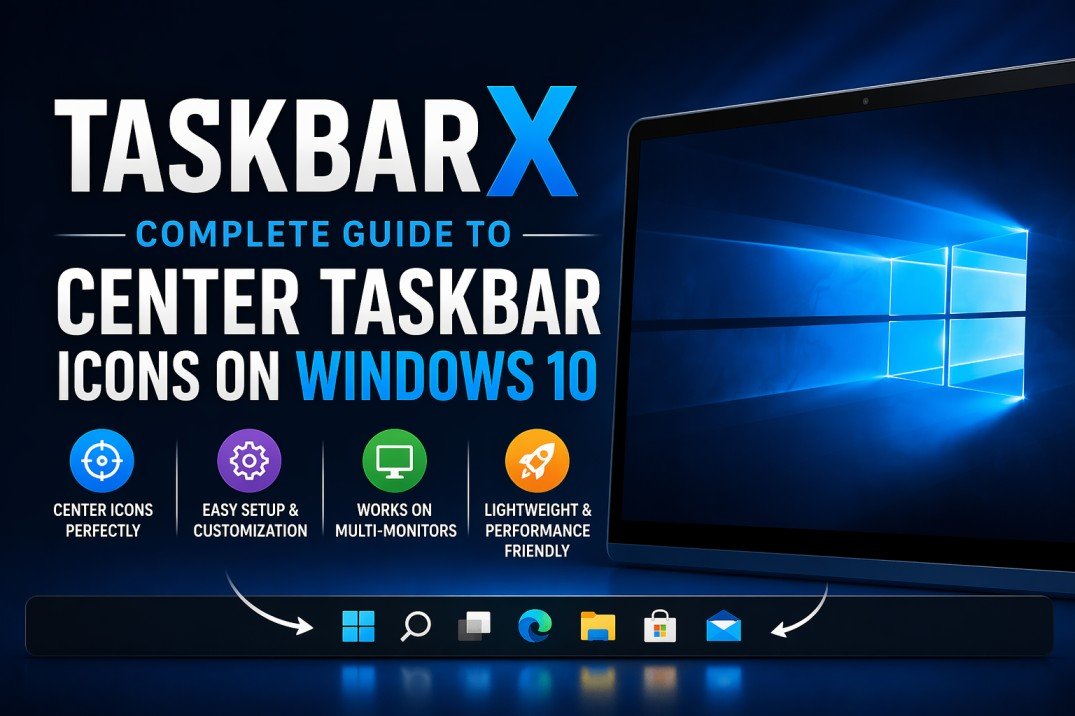
If you’ve ever admired the sleek, centered taskbar icons on Windows 11 or macOS, you might have wished for the same aesthetic on Windows 10. While Windows 10 doesn’t natively support centered taskbar icons, there’s a powerful third-party tool that makes it possible:
TaskbarX is a lightweight utility that dynamically centers your taskbar icons, giving your desktop a modern and clean look without compromising functionality. In this comprehensive guide, you’ll learn everything you need to know about TaskbarX—from installation to advanced customization.
Table of Contents
ToggleWhat is TaskbarX?
TaskbarX is a free Windows utility designed to reposition your taskbar icons to the center (or anywhere you want). Originally known as FalconX, it has evolved into a feature-rich customization tool for Windows 10 users.
Unlike manual workarounds, TaskbarX uses smart animations and background processes to keep icons centered even as you open or close apps.
Key Highlights:
- Centers taskbar icons dynamically
- Smooth animations when icons move
- Lightweight and low resource usage
- Highly customizable appearance
- Supports multi-monitor setups
Why Center Taskbar Icons?
Centering taskbar icons isn’t just about aesthetics—it also improves usability for many users.
Benefits:
- Modern UI Feel: Mimics Windows 11/macOS style
- Better Focus: Icons are closer to the center of your screen
- Improved Workflow: Easier access if you work on wide monitors
- Minimalist Setup: Cleaner and less cluttered desktop
How TaskbarX Works
TaskbarX doesn’t modify Windows system files. Instead, it:
- Calculates available space on the taskbar
- Moves icons to the center dynamically
- Adjusts positioning when apps open or close
This ensures a safe and reversible customization.
System Requirements
Before installing TaskbarX, make sure your system meets these basic requirements:
- Windows 10 (32-bit or 64-bit)
- .NET Framework installed (usually pre-installed)
- Minimal RAM usage (very lightweight)
How to Download TaskbarX
There are two main ways to download TaskbarX:
1. Official Website (Free Version)
You can download the free version directly from the developer’s site.
2. Microsoft Store (Paid Version)
The Microsoft Store version costs a small fee but supports the developer and provides automatic updates.
Step-by-Step Installation Guide
Step 1: Download the ZIP File
Download the TaskbarX ZIP archive from the official source.
Step 2: Extract Files
Right-click the ZIP file → “Extract All” → Choose a folder.
Step 3: Run TaskbarX Configurator
Open the extracted folder and double-click:
TaskbarX Configurator.exe
This is where all customization happens.
Step 4: Start TaskbarX
Click Apply or run:
TaskbarX.exe
Your icons will immediately move to the center.
TaskbarX Configurator: Full Breakdown
The Configurator is the heart of TaskbarX. Let’s explore its options.
1. Style Tab
Taskbar Style Options:
- Transparent: Fully see-through taskbar
- Blur: Frosted glass effect
- Acrylic: Fluent design style
- Opaque: Solid color
Acrylic is the most popular for a modern look.
2. Animation Tab
TaskbarX offers smooth animations when icons move.
Options include:
- Linear
- Ease In/Out
- Bounce effect
You can also adjust:
- Animation speed
- Refresh rate
3. Position Tab
This is where the magic happens.
Features:
- Center icons automatically
- Adjust offset manually
- Align left, center, or right
You can fine-tune positioning down to pixel precision.
4. Behavior Tab
Control how TaskbarX behaves:
- Start with Windows
- Hide primary taskbar
- Delay positioning
- Handle multi-monitor setups
5. Advanced Tab
For power users:
- Custom offsets per monitor
- DPI scaling adjustments
- Performance tweaks
How to Make TaskbarX Start Automatically
To launch TaskbarX on startup:
Method 1: Configurator
- Open Configurator
- Enable Start with Windows
- Click Apply
Method 2: Startup Folder
- Press
Win + R - Type
shell:startup - Paste TaskbarX shortcut
Multi-Monitor Support
TaskbarX works beautifully across multiple monitors.
Features:
- Center icons on each monitor independently
- Customize offsets per screen
- Supports different resolutions and scaling
Performance and Resource Usage
One of TaskbarX’s biggest strengths is its efficiency.
Resource Usage:
- CPU: Very low
- RAM: ~5–20 MB
- No noticeable lag
You can also reduce usage by:
- Lowering animation speed
- Disabling unnecessary features
Customization Tips for Best Results
Here are some expert tips to get the most out of TaskbarX:
1. Combine with Transparent Taskbar
Use acrylic or transparent styles for a clean look.
2. Hide Search Bar
Right-click taskbar → Search → Hidden
3. Remove Task View Button
Right-click taskbar → Uncheck “Show Task View”
4. Use Small Icons
Makes centering look more balanced.
5. Align System Tray Icons
Keep system tray clean for a minimalist design.
Common Issues and Fixes
1. Icons Not Centering
Fix:
- Restart TaskbarX
- Ensure no taskbar toolbars are enabled
2. Icons Jumping or Flickering
Fix:
- Lower animation speed
- Update TaskbarX version
3. Taskbar Resets After Restart
Fix:
- Enable “Start with Windows”
- Check startup permissions
4. Conflicts with Other Tools
Avoid using multiple taskbar customization tools at once.
TaskbarX vs Native Windows Options
Windows 10 offers a workaround using toolbars, but it’s not ideal.
Manual Method Problems:
- Not dynamic
- Breaks easily
- Requires constant adjustment
TaskbarX Advantages:
- Automatic centering
- Smooth animations
- Easy setup
- More customization
Is TaskbarX Safe?
Yes, TaskbarX is generally safe if downloaded from official sources.
Safety Points:
- No system file modification
- Lightweight process
- No hidden malware (official version)
Still, always:
- Download from trusted sources
- Scan files with antivirus
Pros and Cons of TaskbarX
Pros:
✔ Clean, modern look
✔ Easy to use
✔ Lightweight
✔ Highly customizable
✔ Works on multi-monitor setups
Cons:
✖ Requires third-party software
✖ Minor bugs occasionally
✖ Needs manual updates (non-store version)
Alternatives to TaskbarX
If you want to explore other tools:
1. FalconX (Older Version)
Predecessor to TaskbarX.
2. CenterTaskbar
Simpler but less feature-rich.
3. Windows 11 Upgrade
Native centered icons (but not always feasible).
Final Thoughts
TaskbarX is one of the best customization tools available for Windows 10 users who want a modern, centered taskbar experience. It strikes a perfect balance between aesthetics and performance, offering smooth animations, flexible settings, and minimal system impact.
Whether you’re a casual user looking to improve your desktop’s look or a power user who enjoys fine-tuning every detail, TaskbarX provides everything you need.
With just a few clicks, you can transform your Windows 10 taskbar into something that looks fresh, clean, and future-ready.