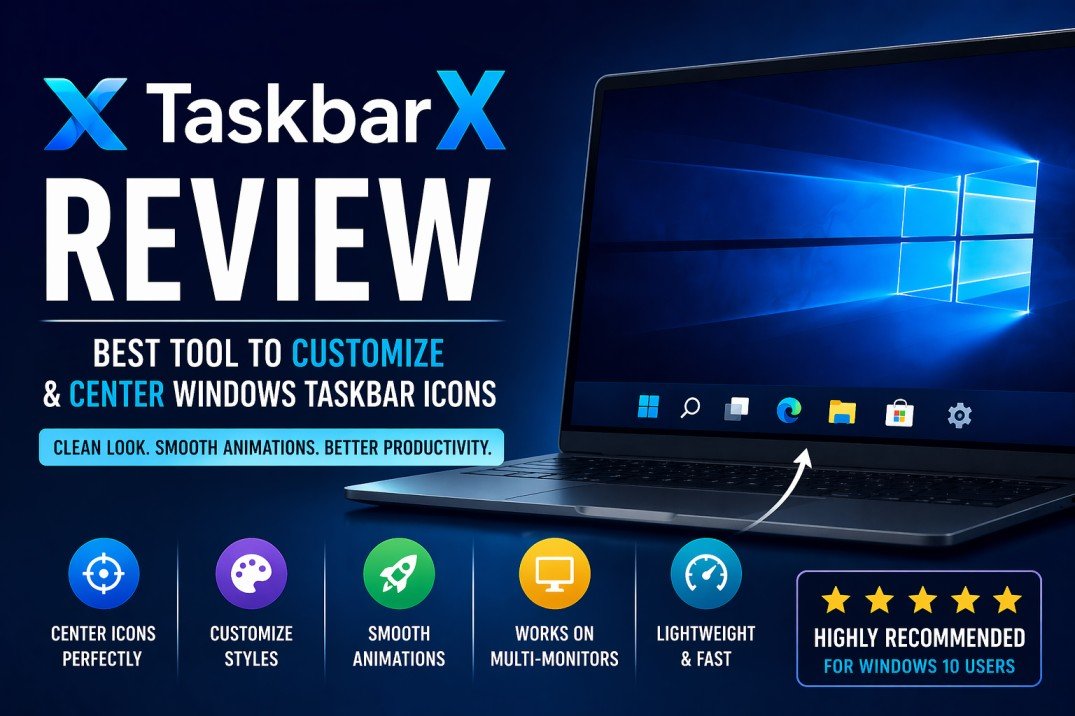
If you’re using Windows 10 and feel your desktop looks outdated compared to modern interfaces, you’re not alone. Many users crave a cleaner, more centered layout—similar to Windows 11 or macOS. That’s where TaskbarX comes in.
TaskbarX has become one of the most popular customization tools for Windows 10, allowing users to center their taskbar icons with smooth animations and extensive personalization options. But is it really the best tool out there? In this in-depth review, we’ll explore its features, performance, pros and cons, and whether it’s worth using.
Table of Contents
ToggleWhat is TaskbarX?
TaskbarX is a lightweight third-party application designed to reposition Windows taskbar icons to the center. Originally known as FalconX, it has evolved into a more polished and feature-rich utility.
Unlike built-in Windows features, TaskbarX offers dynamic positioning. This means your icons automatically stay centered as you open or close apps—something manual tweaks can’t achieve reliably.
Key Features of TaskbarX
1. Dynamic Centering of Taskbar Icons
The core feature of TaskbarX is its ability to center taskbar icons in real time.
What makes it special:
- Icons move automatically as apps open/close
- No manual adjustment needed
- Works seamlessly with pinned and active apps
This creates a balanced, modern desktop layout that feels natural and efficient.
2. Smooth Animations
TaskbarX doesn’t just move icons—it animates them.
Animation options include:
- Linear transitions
- Ease-in and ease-out effects
- Bounce animations
These animations give your desktop a polished, premium feel without being distracting.
3. Taskbar Styling Options
TaskbarX allows you to modify the look of your taskbar beyond just icon positioning.
Available styles:
- Transparent
- Blur effect
- Acrylic (Windows Fluent Design)
- Solid/opaque
The acrylic effect is particularly popular, giving your system a modern Windows 11-like appearance.
4. Advanced Positioning Controls
You’re not limited to just centering.
You can:
- Offset icons manually
- Align icons left, center, or right
- Adjust positioning with pixel precision
This level of control makes TaskbarX suitable for both beginners and power users.
5. Multi-Monitor Support
If you use multiple displays, TaskbarX handles them effortlessly.
Features include:
- Independent centering on each monitor
- Custom offsets per display
- Works with different resolutions and scaling
This is a major advantage over simpler alternatives.
6. Lightweight Performance
One of the standout aspects of TaskbarX is how little system resources it uses.
Typical usage:
- RAM: ~5–20 MB
- CPU: Minimal background usage
You won’t notice any lag or slowdown, even on lower-end systems.
Installation and Setup Experience
Setting up TaskbarX is straightforward and beginner-friendly.
Steps:
- Download the ZIP file
- Extract it to a folder
- Open the configurator
- Click “Apply”
Within seconds, your taskbar icons move to the center.
First Impressions:
- Clean interface
- Simple controls
- Instant results
Even non-technical users can get started easily.
User Interface and Ease of Use
TaskbarX uses a separate configuration tool rather than a complex dashboard.
UI Highlights:
- Tab-based layout
- Clear categories (Style, Animation, Position, etc.)
- Minimal learning curve
While it’s not flashy, it’s functional and efficient.
Performance Review
Performance is where TaskbarX truly shines.
1. Speed
Icon repositioning happens instantly. Even when opening multiple apps, the animations remain smooth.
2. Stability
TaskbarX is generally stable, though minor bugs may occur occasionally (common with third-party tools).
3. Resource Efficiency
Compared to other customization tools, TaskbarX is extremely lightweight.
Real-World Usage Experience
After extended use, TaskbarX proves to be reliable and enjoyable.
What users love:
- Clean desktop look
- Smooth icon transitions
- Consistent behavior
Minor annoyances:
- Rare flickering issues
- Occasional reset after system updates
Overall, the experience remains positive.
Customization Capabilities
TaskbarX offers a surprising amount of customization.
Visual Customization
- Transparency levels
- Blur intensity
- Accent color integration
Behavior Customization
- Startup behavior
- Animation speed
- Delay timing
Advanced Settings
- DPI scaling adjustments
- Multi-monitor fine-tuning
This makes TaskbarX flexible enough for nearly any setup.
Pros and Cons
✅ Pros
✔ Modern, centered taskbar design
✔ Smooth animations
✔ Lightweight and fast
✔ Easy to set up
✔ Multi-monitor support
✔ Highly customizable
❌ Cons
✖ Requires third-party software
✖ Occasional minor bugs
✖ Free version requires manual updates
✖ Limited official support
TaskbarX vs Alternatives
1. Built-in Windows Workarounds
Windows 10 allows limited customization using toolbars, but:
- Not dynamic
- Breaks easily
- Requires manual adjustments
👉 TaskbarX is far superior.
2. CenterTaskbar
A simpler alternative, but:
- Fewer features
- No advanced animations
- Less customization
3. Upgrading to Windows 11
Windows 11 includes centered icons by default.
However:
- Not all systems support it
- Limited customization compared to TaskbarX
Is TaskbarX Safe to Use?
Yes—TaskbarX is generally safe when downloaded from trusted sources.
Safety Highlights:
- No system file modification
- Runs as a background process
- Easy to uninstall
Always ensure:
- You download from official sources
- You scan files before installation
Who Should Use TaskbarX?
TaskbarX is perfect for:
1. Design Enthusiasts
If you care about aesthetics, this tool is a must-have.
2. Productivity Users
Centered icons can improve accessibility on wide screens.
3. Windows 10 Users
Especially those who don’t want to upgrade to Windows 11.
Who Should Avoid It?
TaskbarX may not be ideal for:
- Users who prefer default Windows UI
- Those uncomfortable with third-party tools
- Enterprise environments with strict policies
Tips to Get the Best Experience
1. Use Acrylic Style
Gives a premium, modern feel.
2. Hide Unnecessary Taskbar Items
Remove clutter for better centering.
3. Adjust Animation Speed
Find a balance between smoothness and responsiveness.
4. Enable Startup Option
Ensures TaskbarX runs automatically.
Final Verdict
TaskbarX is arguably the best tool available for customizing and centering taskbar icons on Windows 10. It combines simplicity, performance, and flexibility into one lightweight package.
While it’s not perfect, its advantages far outweigh its minor drawbacks. For users looking to modernize their desktop without upgrading to Windows 11, TaskbarX is an excellent solution.
Rating Breakdown
- Features: ⭐⭐⭐⭐⭐
- Performance: ⭐⭐⭐⭐⭐
- Ease of Use: ⭐⭐⭐⭐☆
- Customization: ⭐⭐⭐⭐⭐
- Overall: ⭐⭐⭐⭐⭐
Conclusion
If you want to transform your Windows 10 desktop into a sleek, modern workspace, TaskbarX is one of the best tools you can use.
It’s lightweight, powerful, and easy to set up—making it suitable for both beginners and advanced users. Whether you’re after aesthetics or improved usability, TaskbarX delivers on both fronts.